How I Made My Avatar
Here is a brief overview of all the layers involved in manipulating myself into an Avatar in Photoshop.
The original photo.

Removing my eyebrows. First I tried to use the Clone Stamp Tool, but I wasn’t happy with the results.
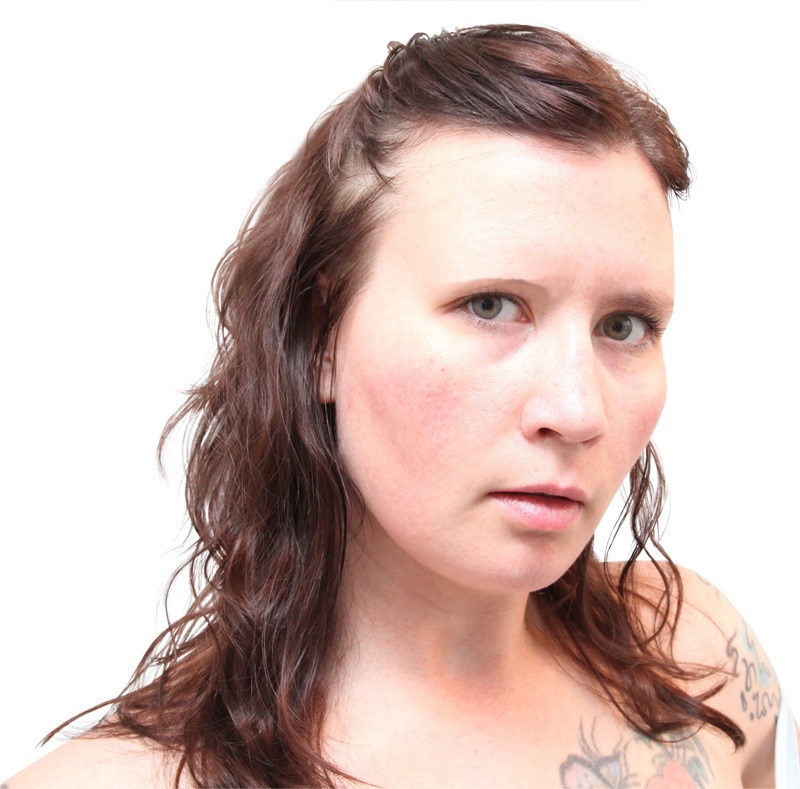
Then I just used a brush at 30% opacity, sampling my skin tone and gradually giving my brow shape while hiding the eyebrow. I also flattened out the bridge of my nose.

I darkened my lips. The layer is set to “Multiply”.
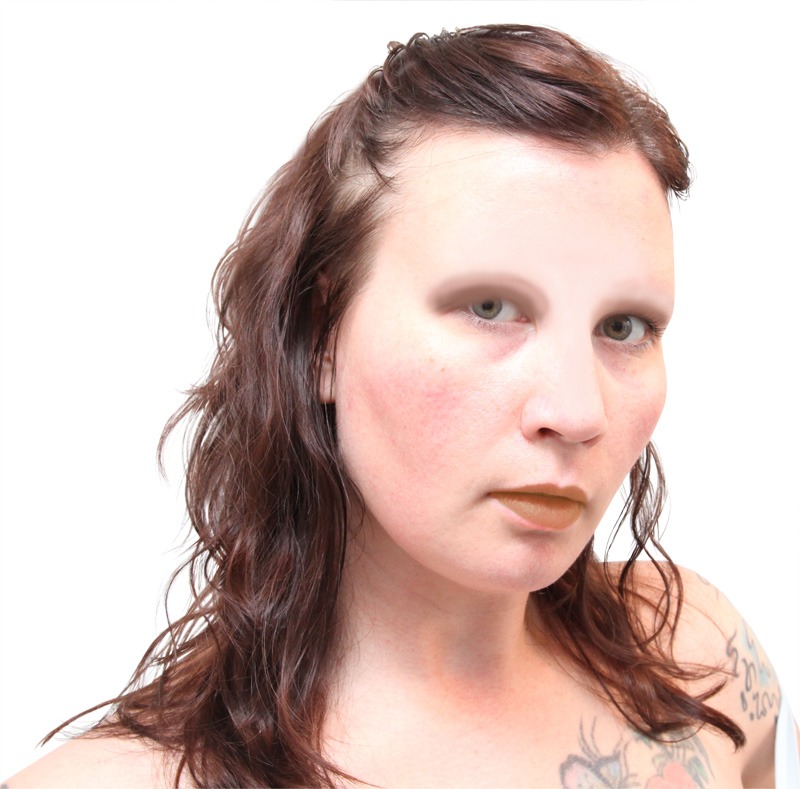
I enlarged my eyes. First, I cut out the eyes, then reduced the rest of my face (so that I wouldn’t lose quality in the eyes).

Then I made my eyes a light, brighter green. The layer is set to “Vivid Light”.

I gave the image more contrast with a “Levels” adjustment layer.
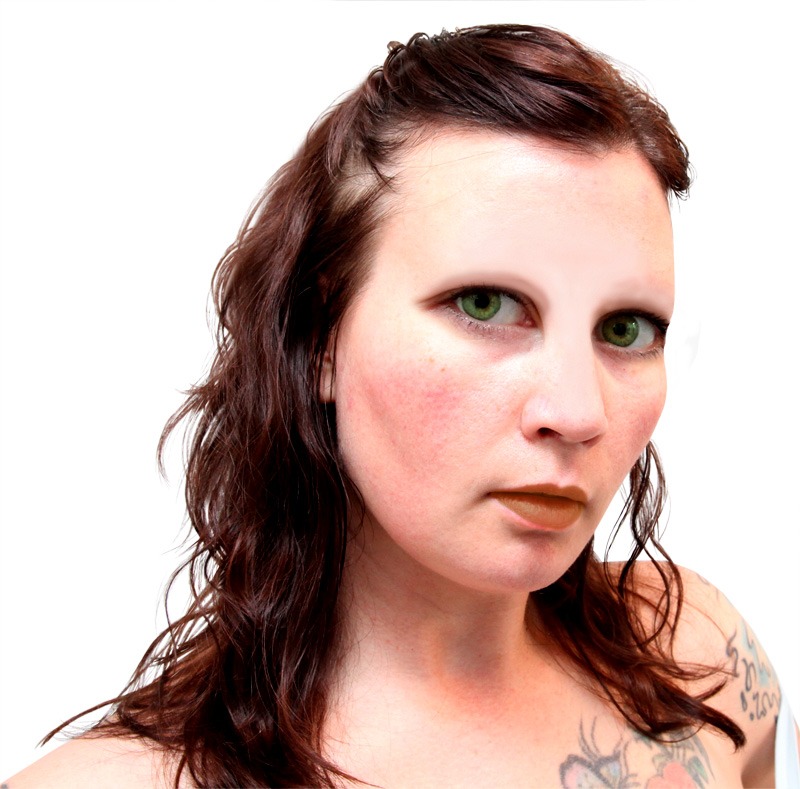
With a soft, thick brush I added highlights to my eyes to brighten them.
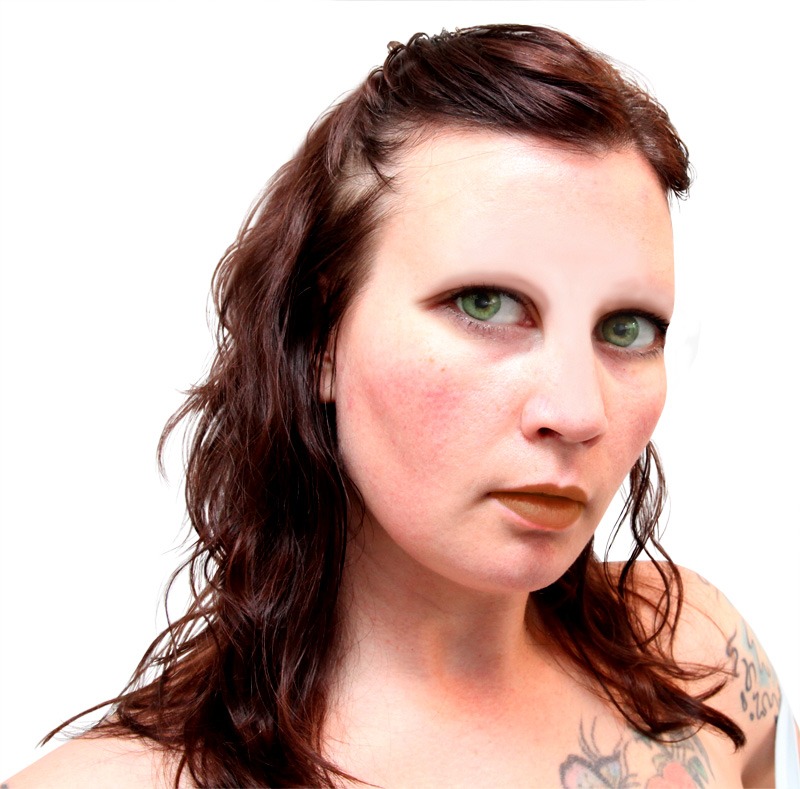
Now for the exciting part, blue! I changed my skin color by adding a solid block of blue, with the layer set to “Hard Light”.

With a similar technique, I darkened my hair to black with a tint of blue. This layer is also wet to “Hard Light”. Oh yeah, the nose shadow is added here too.

And now for the second most fun part, my animal stripes! I drew them with the Lasso Tool, filled them in with a darker blue, blurred the edges and set the layer to “Overlay”.

No Avatar is complete without some big eyelashes. Here I made them much bigger.
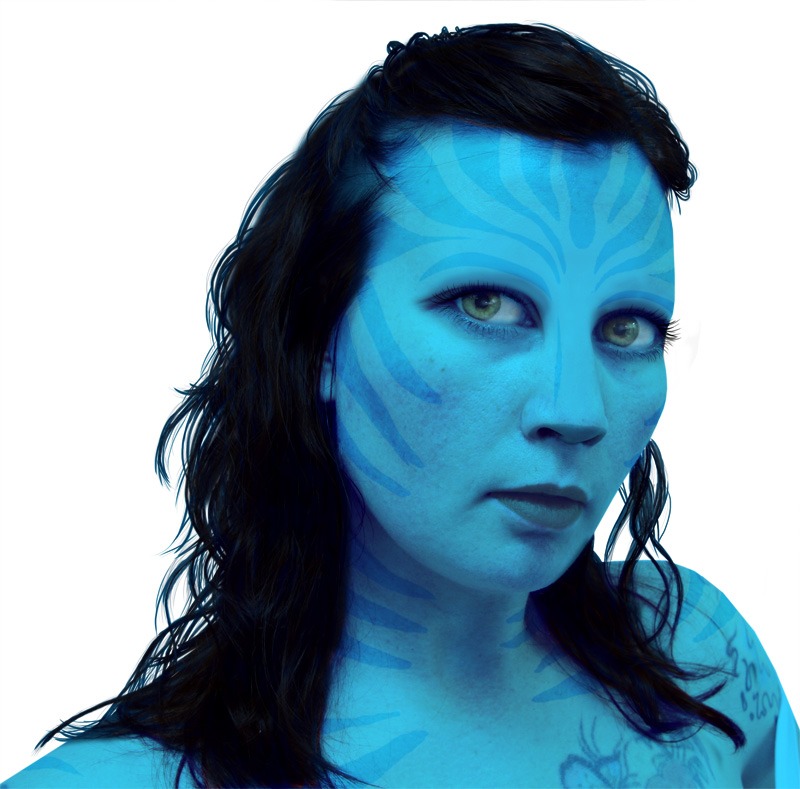
Time for some ears (the only thing I borrowed from a real Avatar).

Some fanciful, glowing white dots.

Finally the background, which I chose for mood and lack of light source to match my head. The only thing I did was blur it some. And this completes my Avatar.
